> For the complete documentation index, see [llms.txt](https://sixbot.gitbook.io/sixbot-help-center/llms.txt). Markdown versions of documentation pages are available by appending `.md` to page URLs; this page is available as [Markdown](https://sixbot.gitbook.io/sixbot-help-center/frequently-asked-questions/send.whatsapp.message/broadcast.message.md).
# How to Send Broadcast Messages via WhatsApp Business API?
## Step1: **Set Template**
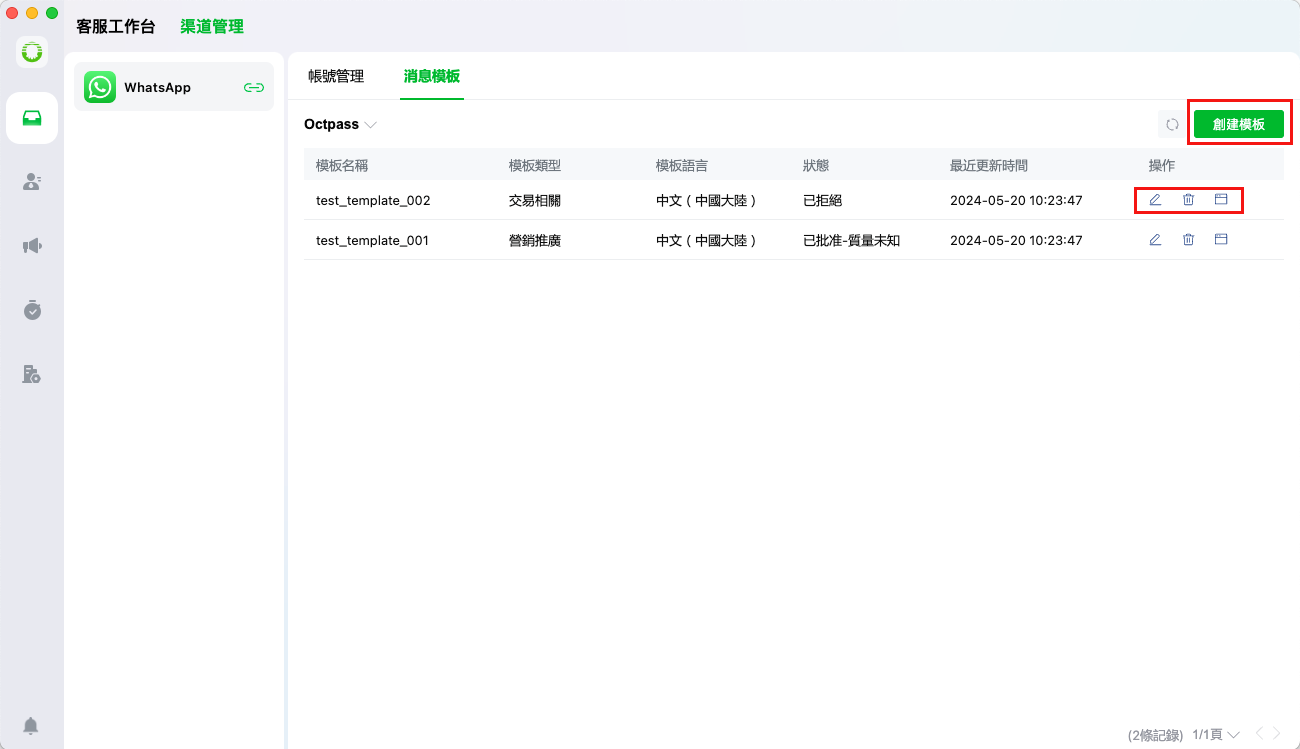
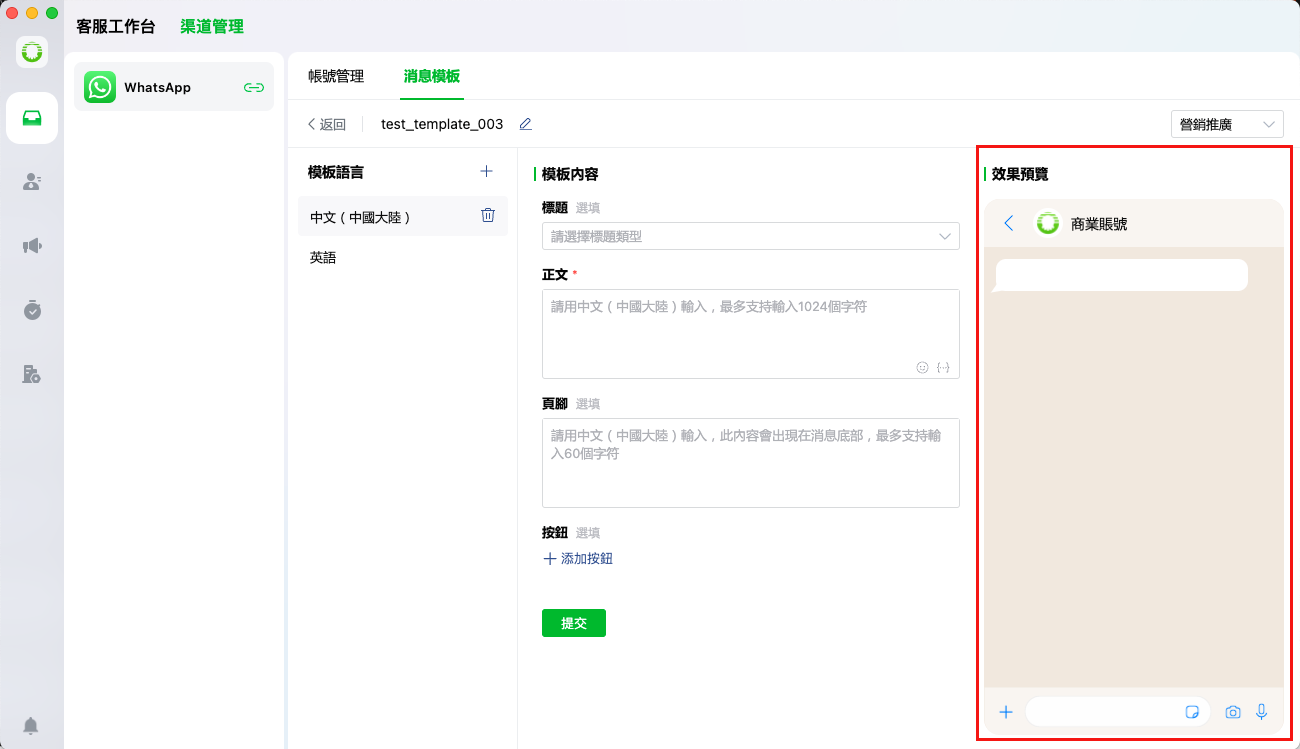
Users can manage the message templates under the channel (create, edit, delete, preview)
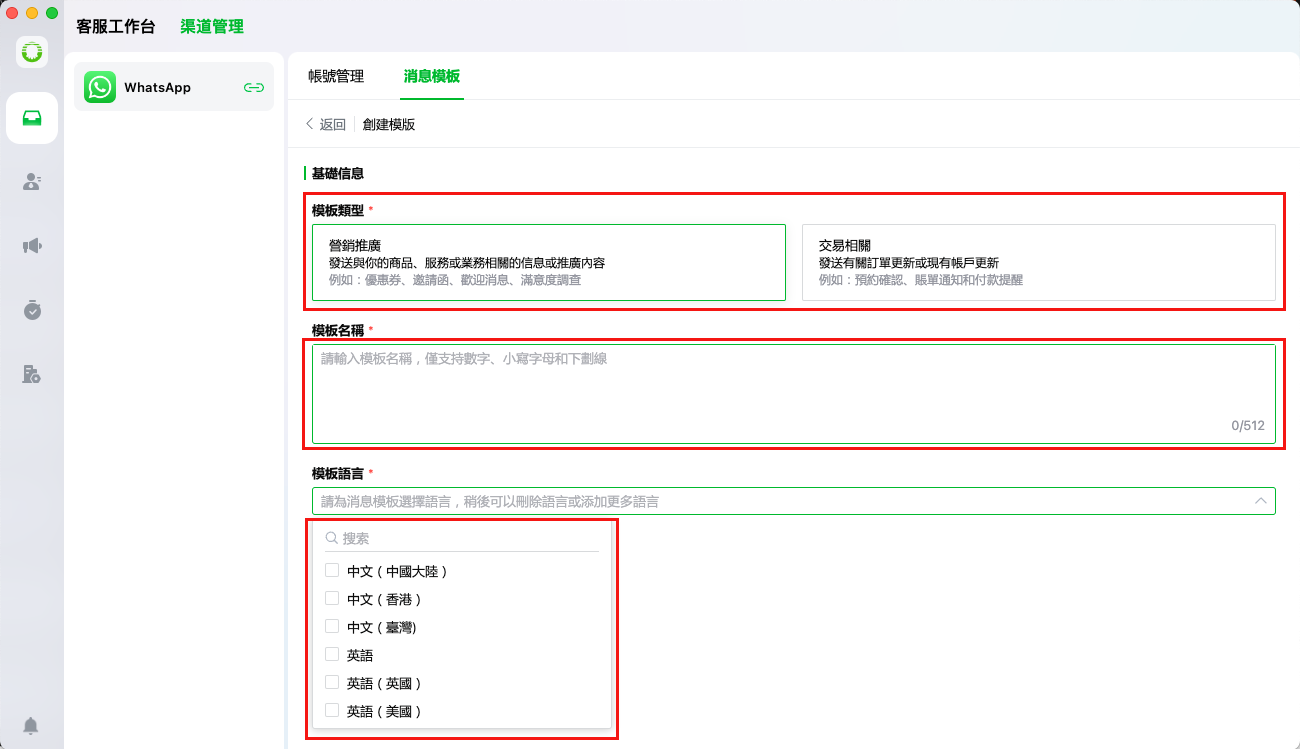
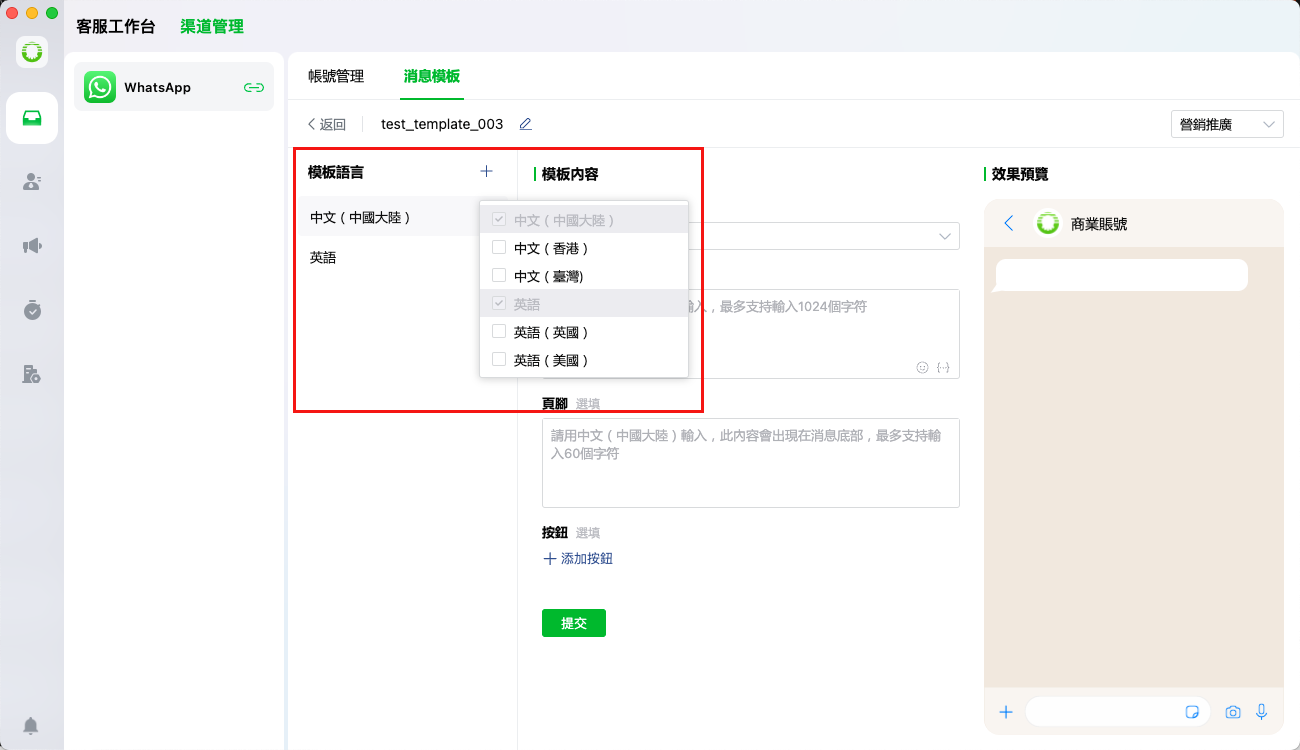
When creating a template, users need to first select the template type, fill in the template name, and choose the template language
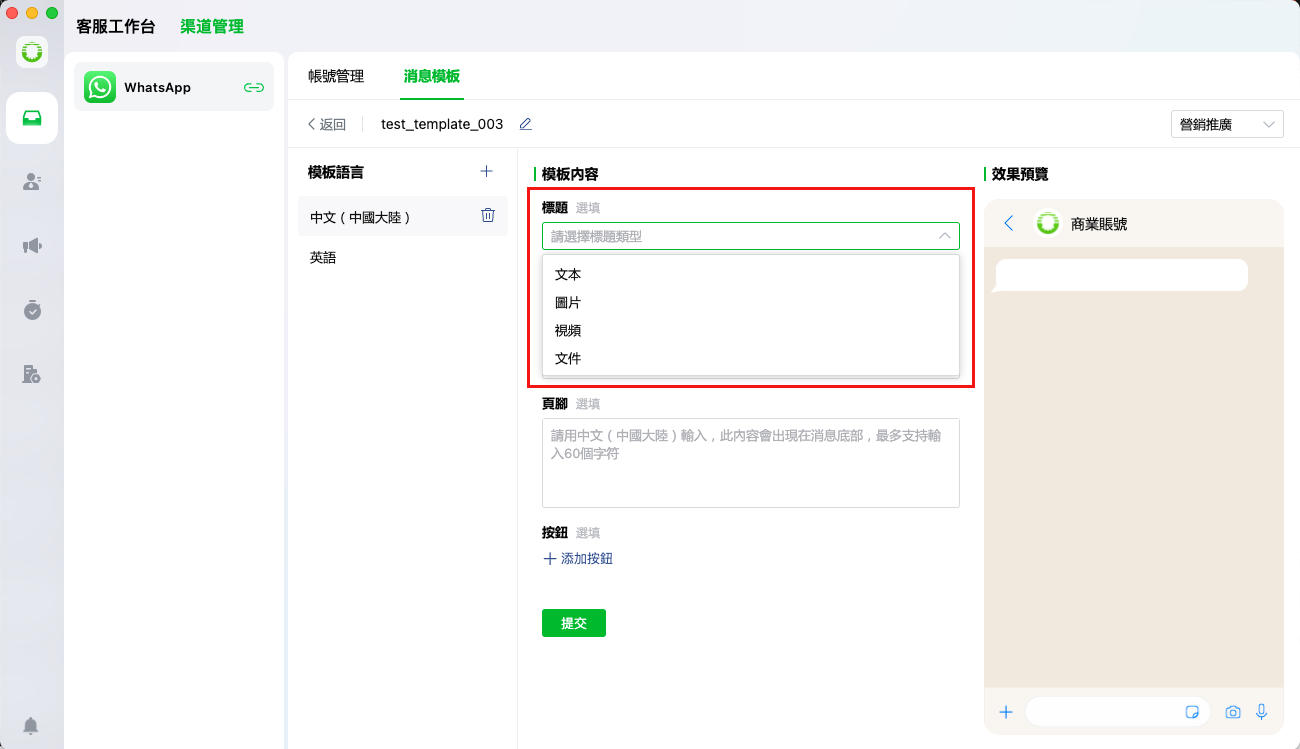
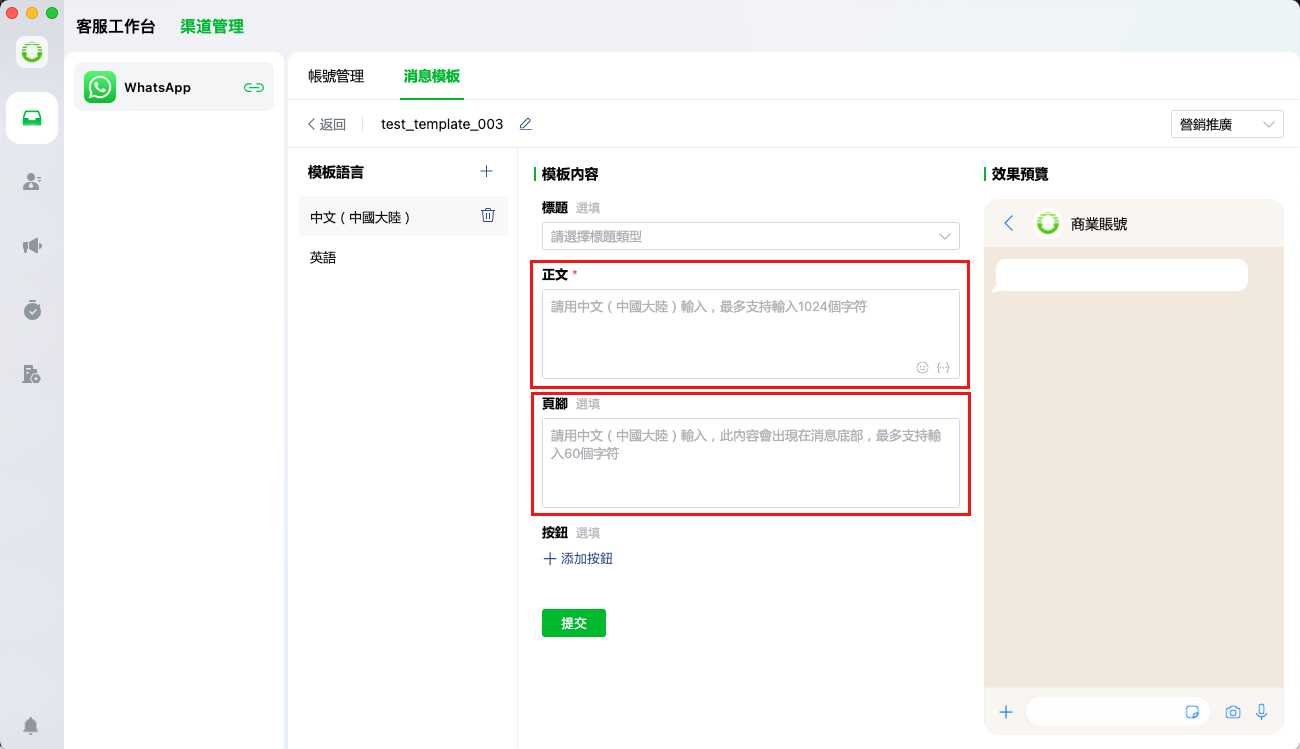
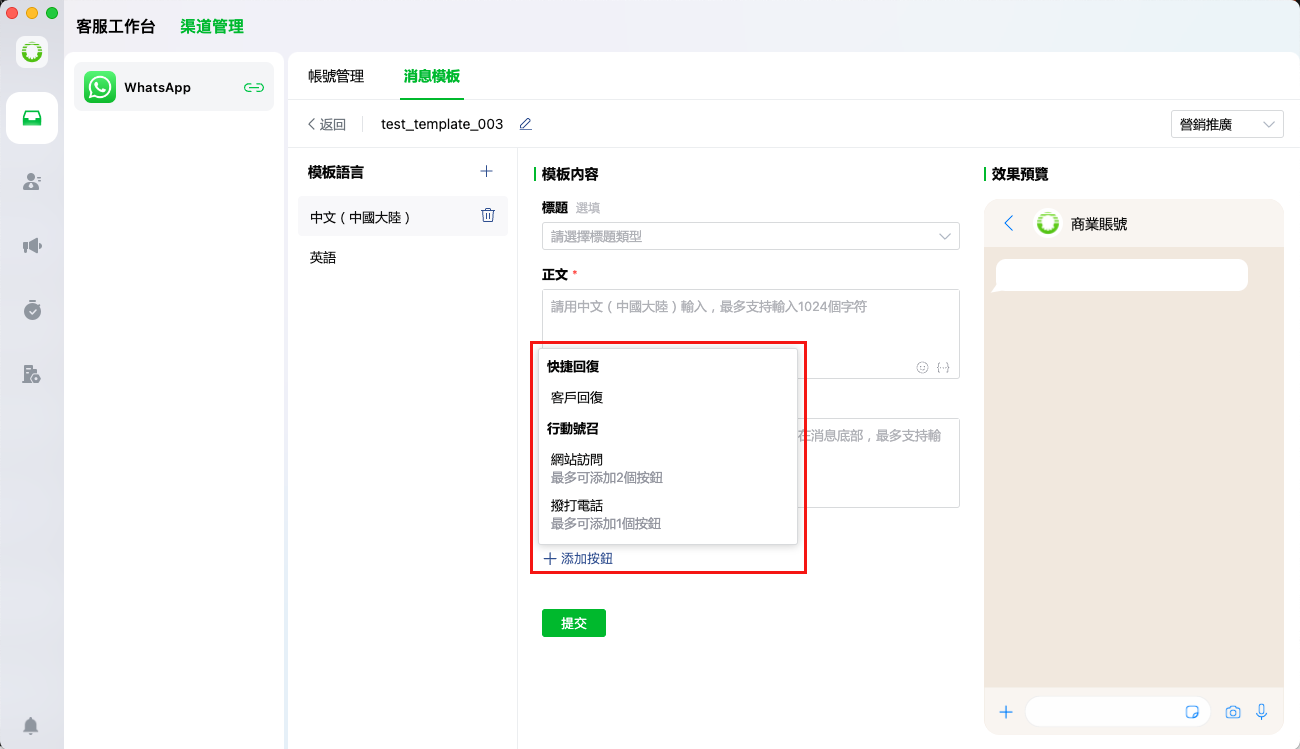
Then, users can set the template content (selecting titles, bodies, footers, and buttons)
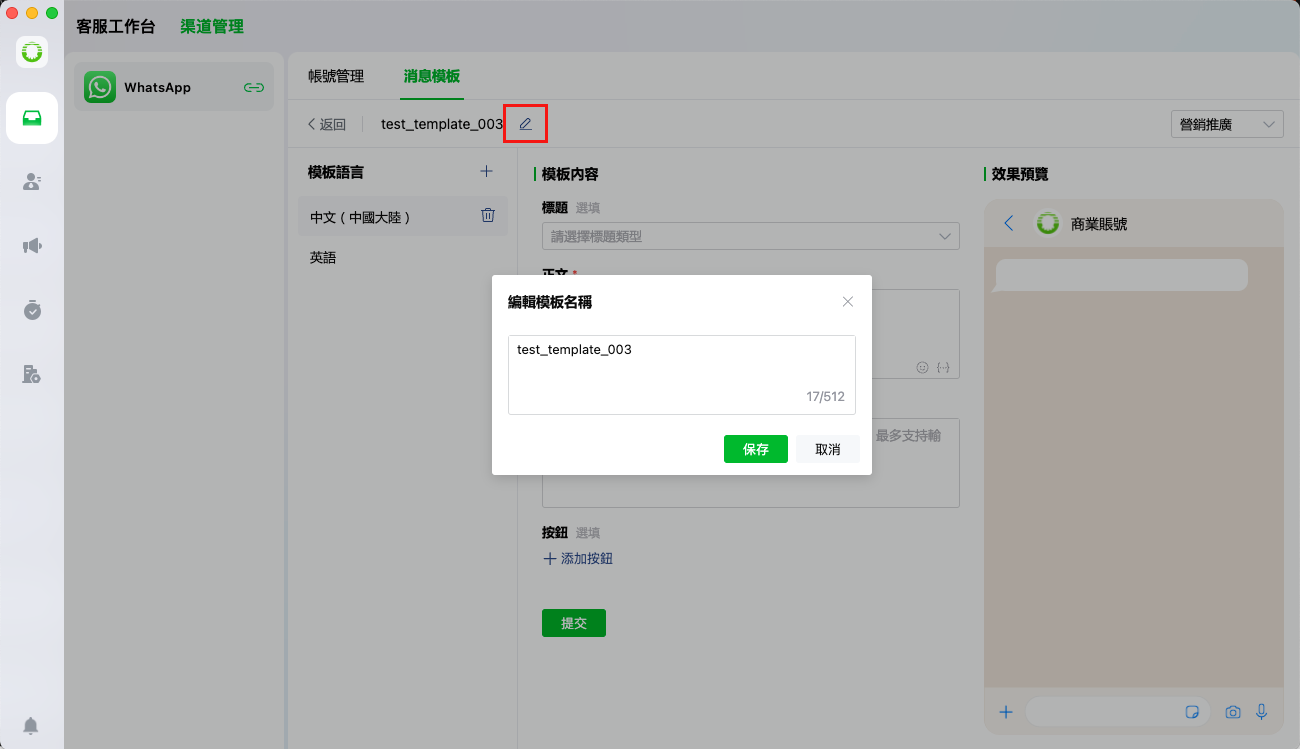
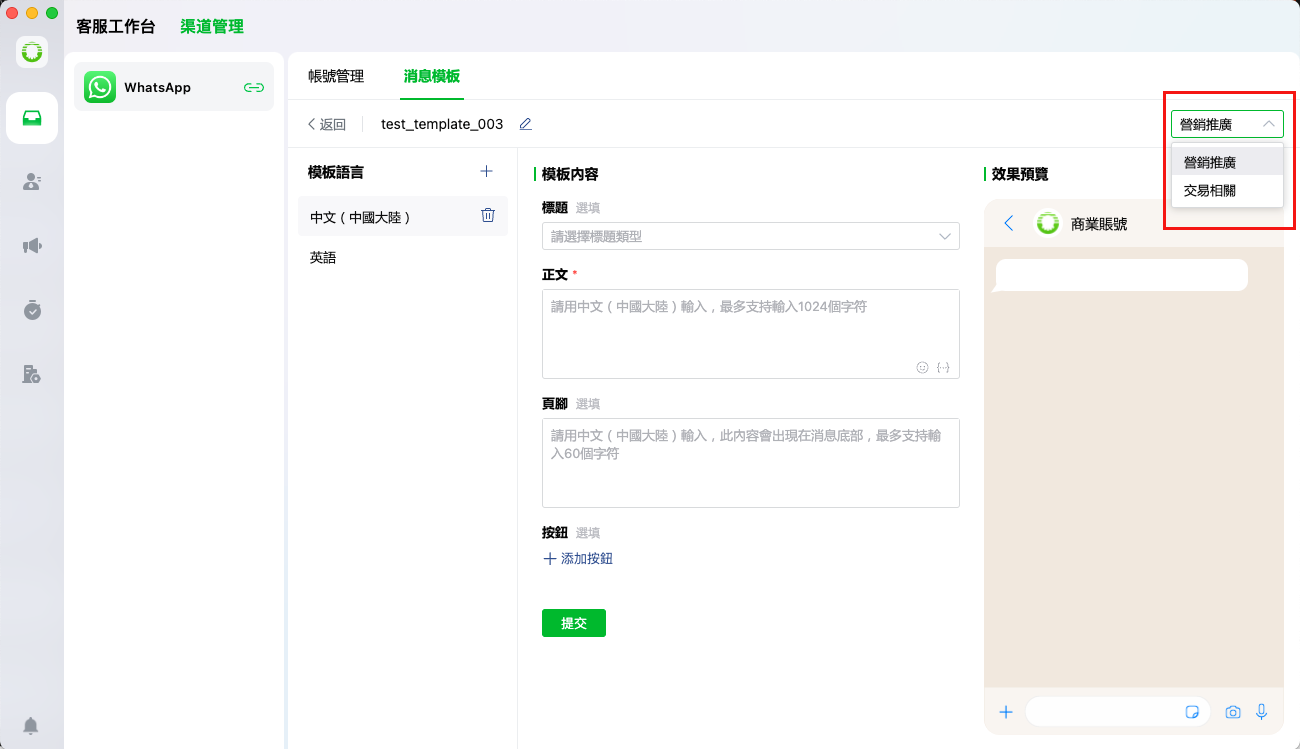
In addition, users can set templates in multiple languages, edit template names, switch template types, and preview templates.
Once users finish editing their message template, they should click the submit button to initiate WhatsApp's official template review and approval process.
{% hint style="info" %}
Submitted templates become available only after passing WhatsApp's review process
{% endhint %}
## Step 2: Create a Broadcast Task
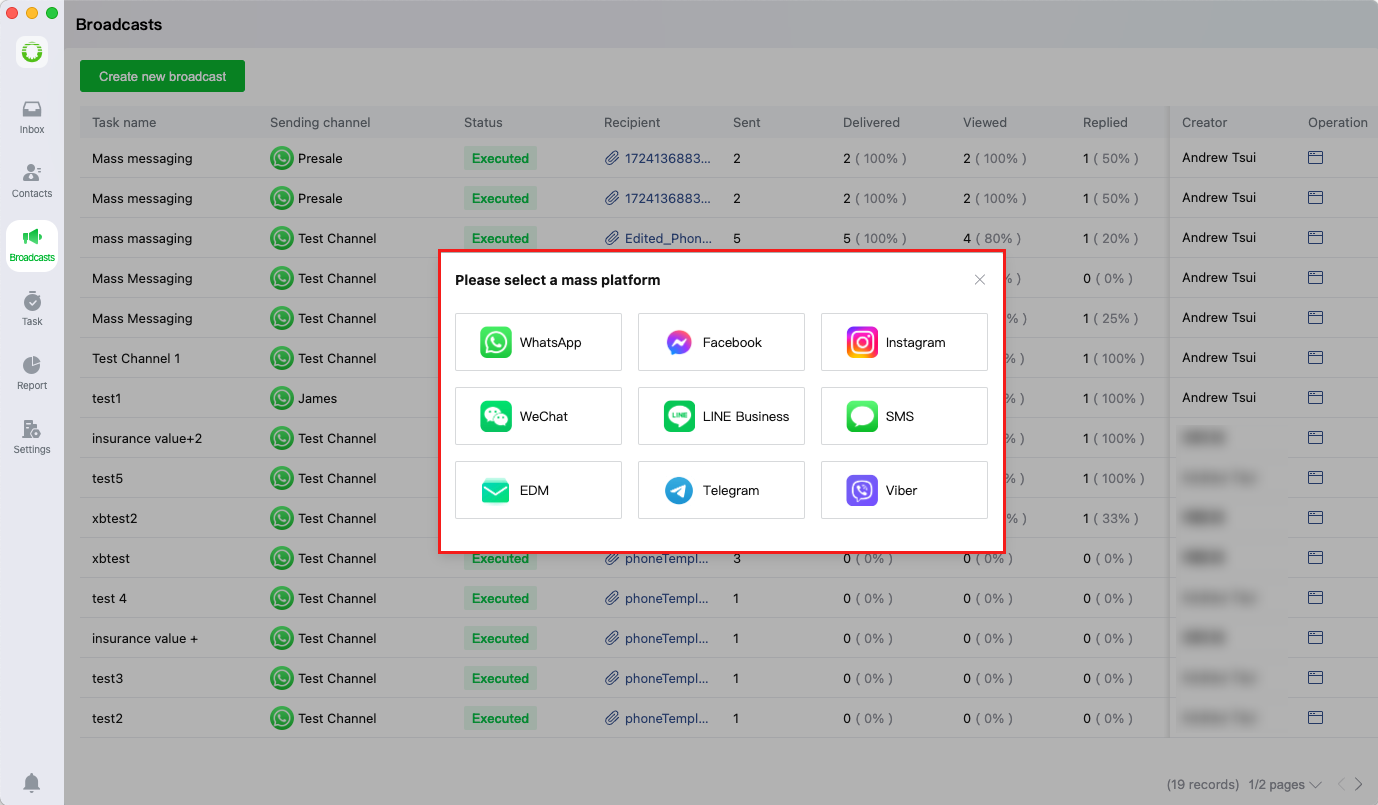
When creating a broadcast task, users must first select the distribution channel for their message
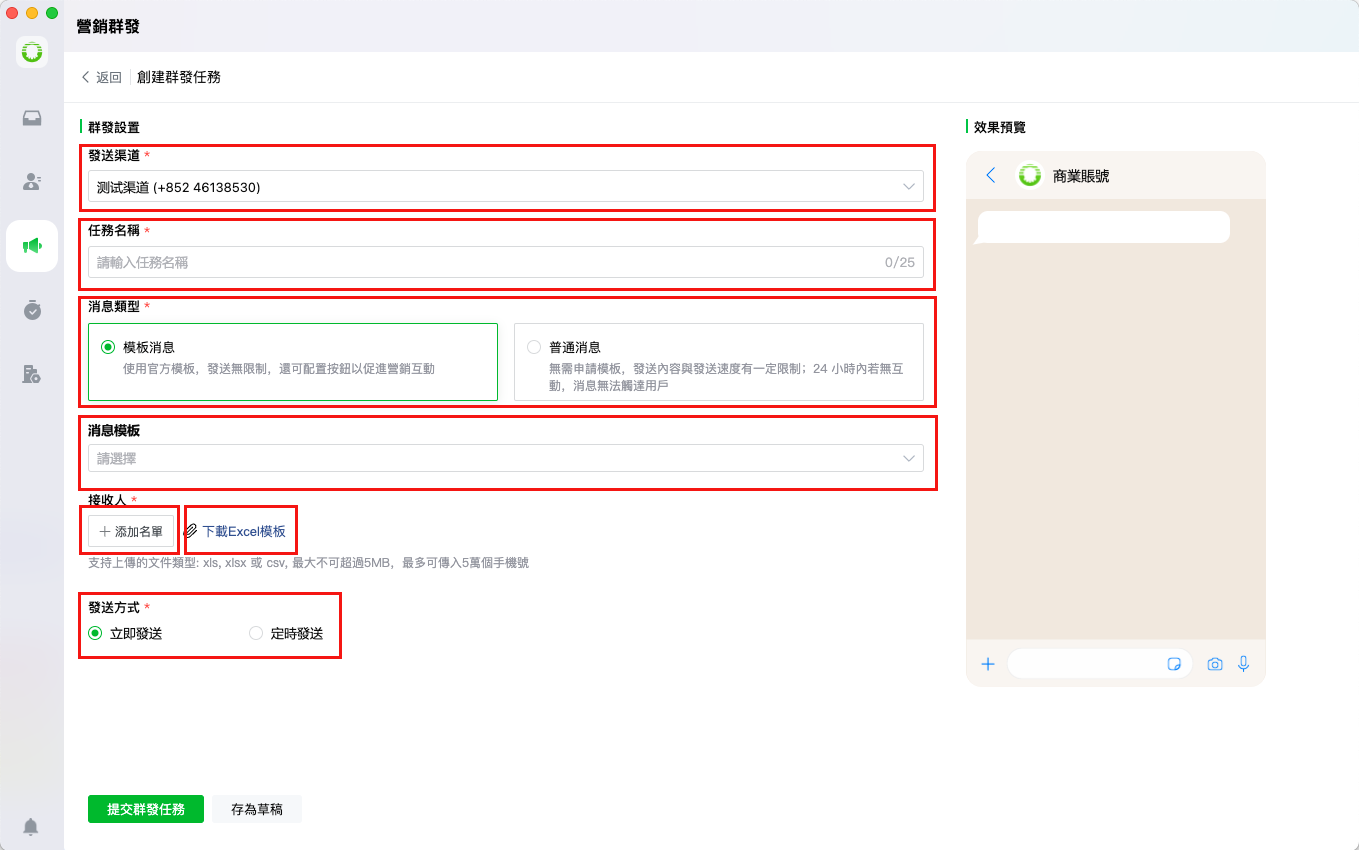
After initiating a broadcast, users need to configure the message by the following setting:
* Selecting the distribution channel
* Entering a task name
* Choosing the message type
* Selecting a message template
* Uploading recipient lists
* Downloading the recipient Excel template
* Selecting the delivery method (immediate/scheduled)
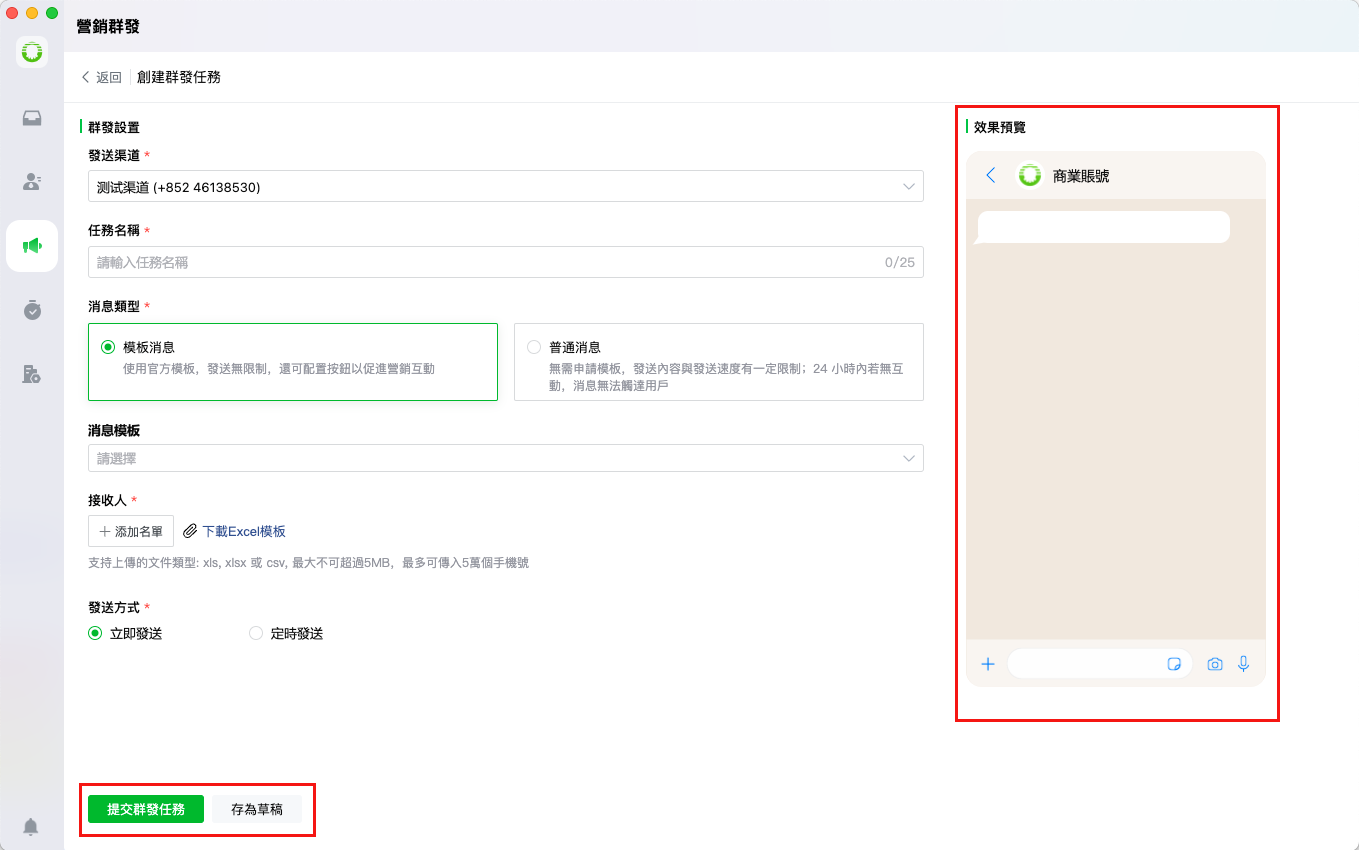
After completing the setup, users can preview the message rendering and either:
* Submit the broadcast task for immediate processing, or
* Save as draft for future editing